
Odoo provides a useful feature called Sale Warnings, which helps businesses notify salespeople about important information when selecting customers or products while creating quotations and Sales Orders.
By configuring warnings on individual customer and product records, businesses can display important instructions, highlight potential issues, or prevent certain sales operations from proceeding.
Where to Enable Sale Warnings?
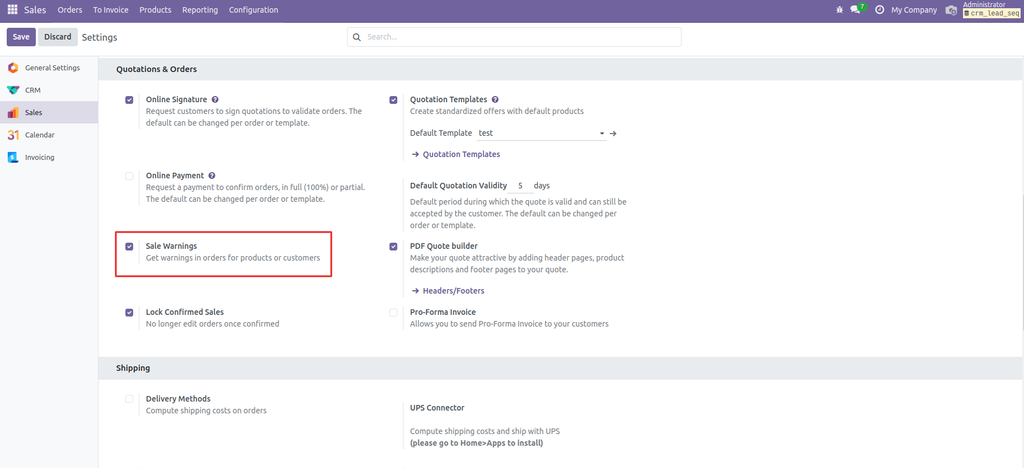
To enable this feature:
- Open the Sales App.
- Navigate to Configuration → Settings.
- Locate the Quotations & Orders section.
- Enable Sale Warnings.
- Save the configuration.
Types of Sale Warnings
Odoo provides three warning options:
1. No Message
- No warning or notification is displayed when selecting the customer or product.
- This is the default behavior when no warning is configured.
2. Warning
- Displays an informational warning message to the salesperson.
- The salesperson can acknowledge the message and continue with the sales operation.
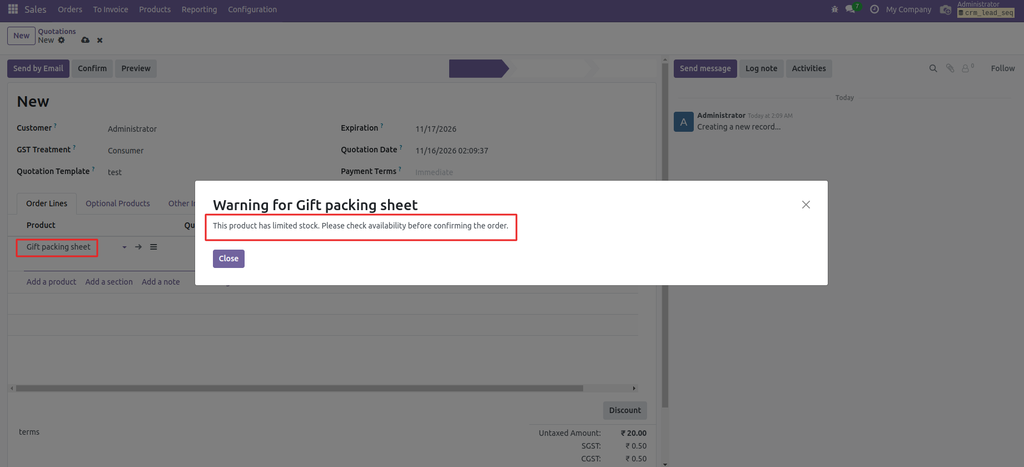
Example: “This product has limited stock. Please check availability before confirming the order.”
3. Blocking Message
- Displays a blocking message when the configured customer or product is selected.
- Prevents the salesperson from proceeding with the relevant operation.
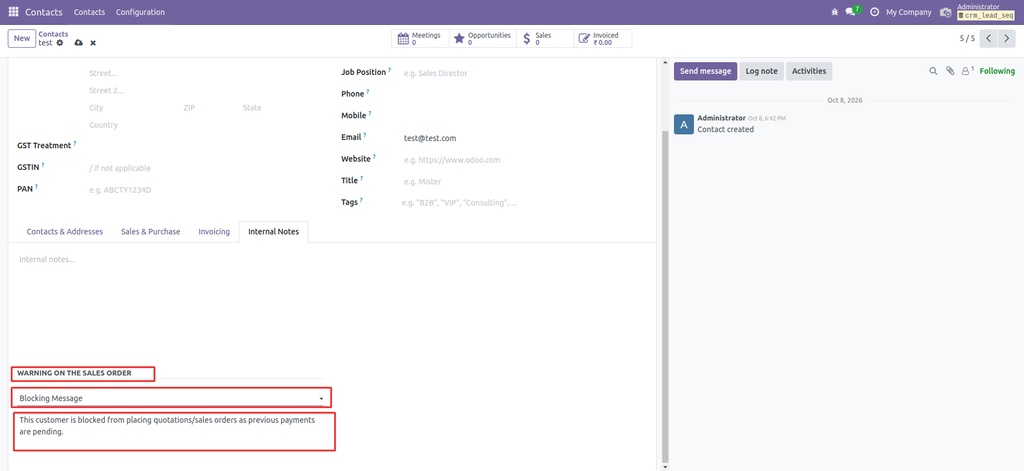
Example: “This customer is blocked from placing quotations/sales orders as previous payments are pending.”
Where Can You Configure These Warnings?
You can configure warnings on individual records:
For Customers:
- Navigate to Contacts.
- Open the required customer record.
- Go to “Internal Notes” Tab.
- Locate the Sales Warning option(Under “WARNING ON THE SALES ORDER” section).
- Select the warning type and enter the warning message.
For Products:
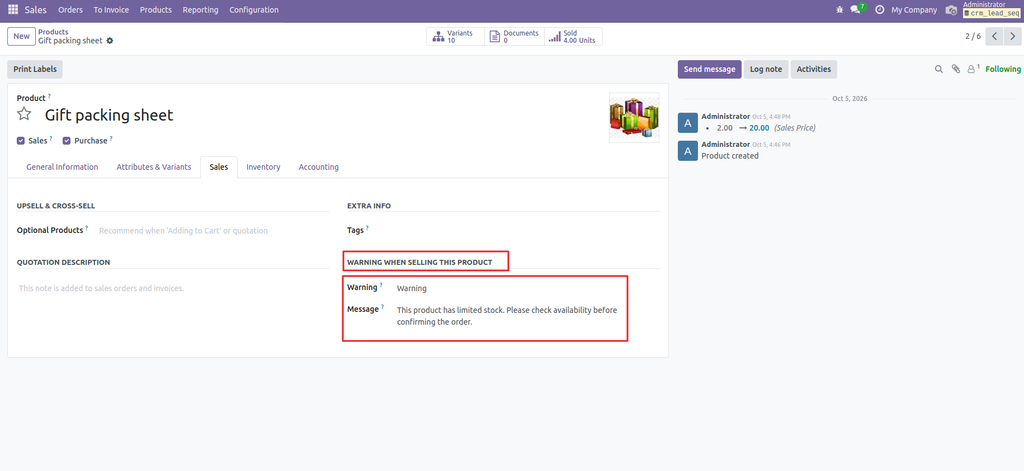
- Navigate to Sales → Products.
- Open the required product.
- Go to “Sales” Tab.
- Locate the Sales Warning option(Under “WARNING WHEN SELLING THIS PRODUCT” section).
- Configure the warning type and message.
Practical Example – Product Warning Message
Suppose a company sells a product called Gift Packing Sheet.
The company wants salespeople to verify stock availability before processing orders for this product.
The administrator can configure:
- Warning Type: Warning
- Warning Message: “This product has limited stock. Please check availability before confirming the order.”
Whenever a salesperson selects this product in a quotation or Sales Order, Odoo displays the configured warning.
Practical Example – Customer Blocking Message
Suppose a company has a customer named Test whose account is temporarily blocked due to pending payments.
The company does not want salespeople to create new quotations or Sales Orders for this customer until the outstanding payments are cleared.
The administrator can configure:
- Warning Type: Blocking Message
- Warning Message: “This customer is blocked from placing quotations/sales orders as previous payments are pending.”
Whenever a salesperson selects test customer while creating a quotation or Sales Order, Odoo displays the configured blocking message and prevents the salesperson from proceeding.
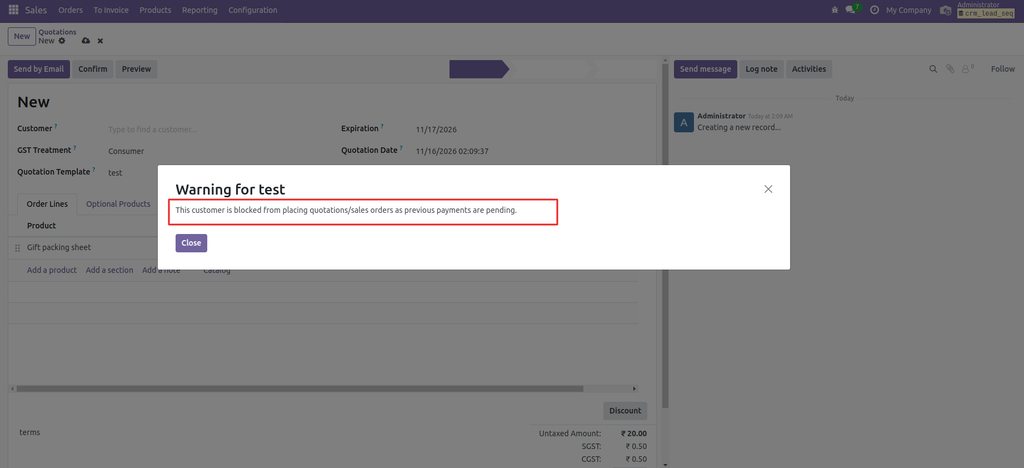
Note :- This helps ensure that important instructions are communicated at the right time. And the major difference between warning and blocking message is that warning shows a message to the screen but it let you proceed further and doesn’t block you, but blocking message prevents or blocks you from proceeding further processes.
Why Is This Feature Useful?
- Avoid Sales Mistakes: Alerts salespeople about important customer or product-related conditions.
- Improve Communication: Ensures that important instructions are visible during sales order creation.
- Control Sales Operations: Blocking messages can prevent certain operations from proceeding.
- Save Time: Reduces the need for manual communication between salespeople and administrators.
- Improve Business Processes: Helps standardize sales workflows through configurable warnings.
Conclusion
Sale Warnings in Odoo provide a simple yet effective way to communicate important information during quotation and Sales Order creation.
Whether you want to notify salespeople about product availability, highlight customer-specific instructions, or restrict certain sales operations, this feature helps improve accuracy and control in your sales workflow.